
Lenders utilizing self-hosted environments, or private deployed environments also must install and configure the infrastructure needed to support Encompass via databases, integrations and client components. On the other hand, when it comes time for the loan IT team to deploy Encompass, they find the process runs quickly and efficiently if they use a structured plan of deployment and check the required items/tools/criteria prior to installing.
Lenders choose Encompass because it provides a platform that brings together loan originations, compliance, workflow and integration into a single location. Depending on how Encompass is deployed, ICE Mortgage Technology may provide the hosting services or the customer would provide the hosting services through customer-managed infrastructure. So proper planning before installation plays an essential role in eliminating issues related to slow installations.
Installation procedures, supported operating systems, SQL Server versions, and infrastructure requirements vary by Encompass release and deployment model. Always consult current ICE Mortgage Technology deployment documentation before beginning an installation. To know more about all this, especially Encompass server setup, let’s explore this Encompass installation guide in detail.
Encompass Installation On Server Step By Step
Wondering about how to install Encompass on the server? There are various steps to do so. Before beginning installation, you must have a stable server environment in which to install and also know about Encompass server minimum requirements. Moreover, it is necessary that lenders estimate the Encompass server setup cost to avoid unexpected expenses.
Step 1: Prepare Windows Server Environment
The start of the installation process includes preparing your Windows Server. The first step towards setting up Encompass, is ensuring that your version of Windows Server meets the requirements needed to run the Encompass application. In addition, organizations can streamline implementation by following a structured Encompass LOS server setup checklist.
Typically, prior to database configuration, an IT through system logs to make sure that no conflicts exist on systems. Follow these steps:
- Start off by installing any prerequisites from MicroSoft such as Windows Server Updates for the release that you are going to deploy Encompass.
- To do that IT staff generally verify all system logs to make sure there are no items that may create conflicts before configuring the database.
- Install all Microsoft requirements for the Encompass Release you are installing.
- Ensure SQL Server Authentication and Security Policy are set up to meet your organization’s requirements.
- Take a close look at the workloads on your servers and eliminate any applications that are not needed. You must ensure that all required Windows services are still running.
- Make sure the server’s time synchronization and regional settings are configured according to your business operations and reporting needs within the company.
Step 2: Install and Configure SQL Server
SQL Server installation and Encompass Server configuration requires special care. Encompass stores both loan and configuration data in Microsoft SQL Server database environments when installed in a self-hosted installation. When installed in the cloud, Encompass uses infrastructure managed by ICE Mortgage Technology.
SQL Server installation Requirements:
- Configure SQL server Authentication for your organization & for how Encompass is being deployed.
- Many lenders prefer a dedicated SQL Server instance because it simplifies performance management, maintenance, monitoring, and troubleshooting.
- Use reasonable memory Limits, do not configure Unlimited for Memory Assignments in the configuration Wizard
Step 3: Download Encompass Server Package
You will need all installation packages, release documentation, deployment credentials, and implementation materials provided by ICE Mortgage Technology.
Step 4: Run Server Installation Wizard
Run the installation using an account with the administrative privileges required by your organization’s security policies and deployment procedures. When performing the configuration steps outlined in this section, it is critical to follow the provided configuration wizard carefully to avoid complications during installation.
During this time, you will need to do the following:
- For customer managed deployments, connect your application to the correct SQL Server instance as noted in your deployment documents.
- Assign service accounts with limited permissions
- Set up application directories
- Configure the logging settings according to the vendors’ requirements, because if you log excessively, it will slow down the performance of your application.
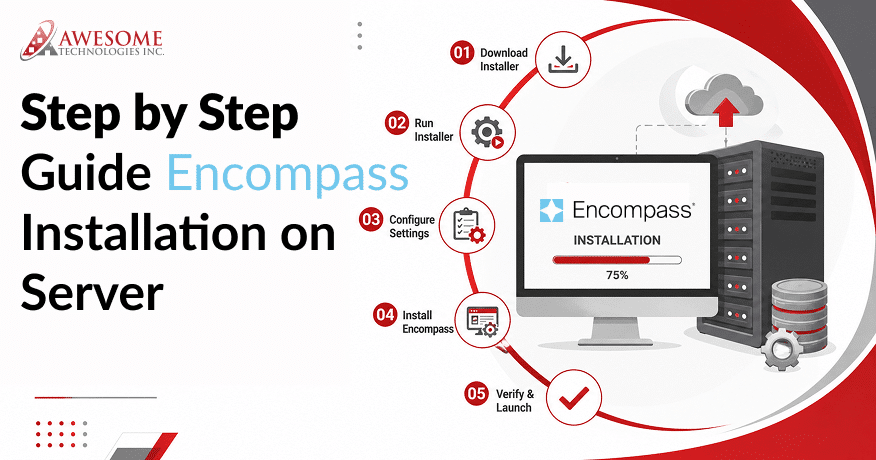
Simple Installation Flow (Infographic Style)
Server Prep → SQL Setup → Installer Launch → Database Link → Service Configuration → Final Validation
This flow ensures that no dependency gets skipped during deployment.
Step 5: Configure Encompass Services
After completing your installation, you can now configure the core services necessary for your business to process loans and support multi-user operations within their company. This will require you to set up the various Encompass services and document management components as well as configure any necessary authentication/encryption services for Encompass. If your organization wants to connect Encompass with a CRM, pricing engine, compliance platform, or any other third-party application, it will also benefit from Encompass integration services that provide secure, reliable, scalable data exchange capabilities.
Step 6: Validate Installation and Run First Test Loan
After configuration, perform system validation tests to help ensure system stability and confirm changes made.
The steps for achieving this:
- You will need to upload example test documents that will allow you to run through all the steps of a non-production loan file to verify the functionality of your systems.
- Once you have successfully uploaded test documents, you will need to also test whether you can move a loan through the various workflow milestones in your organization as defined by your process.
- If validation tests fail, review SQL Server logs, Windows Event Viewer entries, Encompass application logs, and service account permissions before restarting services.
Common Installation Problems (And Quick Fixes)
| Problems | Root Cause | Solution |
| Installation fails midway | Missing .NET features | Enable required Windows features |
| Slow performance | SQL memory misconfiguration | Adjust SQL limits |
| Login errors | Service account issue | Reset permissions |
| API not working | Connectivity, authentication, or firewall issue | Verify endpoints, credentials, certificates, and firewall rules |
In Conclusion
Structured system rollouts of Encompass can greatly minimize risk during deployments and improve stability for the long run like we have clearly mentioned in this Encompass server installation and administration guide. Every step of the way from Windows configuration to SQL tuning has an impact on the overall performance of loan processing and the overall user experience of the entire lending workflow.
To ensure that your Encompass environment can function efficiently within a production environment, it is critical to conduct a server audit prior to proceeding with an installation and avoid performing installations at a fast pace. Having complete and accurate information about Encompass server minimum requirements is also very essential.
Ready to move beyond server installation and build a fully optimized Encompass environment? Explore our Encompass LOS Implementation services to streamline deployment, enhance server and system performance, and establish a scalable mortgage workflow designed for long-term success.
FAQs
1. Why does Encompass installation take time on servers?
Encompass depends fundamentally on databases, integrations, authentication services, and other components that must be set up properly so they can work together properly and reliably. For these reasons, Encompass server setup takes time.
2. Can Encompass run on a basic Windows machine?
The only way that the Encompass installation will work on a standard Windows machine is for testing purposes only. An enterprise-level infrastructure that is enough based on ICE’s deployment specifications is typically required in most production level environments to run at complete productivity.
3. What is the most critical step in installation?
No single step is considered the most critical. Encompass server installation step by step is anyhow important. The success of your deployment will depend on having the infrastructure properly sized, SQL Server configured, secured, integrated, and then validated after installation.
4. How to install Encompass on a server?
When you run the installer from the download link provided above, you will be prompted to specify an Administrator account. After running the installer, you will follow the prompts in the setup wizard. Enter the database information and complete the installation. You will verify that the server is functioning via a test of the connection.
5. What are the server requirements for Encompass?
A supported version of Windows Server, sufficient CPU and RAM to support users, enough disk space for data processing, a functional network connection to access the application over the internet, and a compatible version of Microsoft Office.
6. What is the Encompass server compression setting?
The purpose of the Encompass Server Compression setting is to minimize the number of bytes of data transferred back and forth from the client and server. It helps to improve performance while at the same time reducing network traffic.
7. How do I repair an Encompass server installation?
You would first open the Encompass Server Configuration Wizard, select the repair option, and continue with the setup process. Upon completion, missing or corrupt files will be replaced along with keeping your existing configuration.